
Clock in from your phone
Clock in and out, and take breaks, without a timeclock.
- 1
Open Clock in
Sign in to CrewCrow and open Clock in at the top of the menu. You’ll see today’s shift, if you have one.
- 2
Punch in, break, punch out
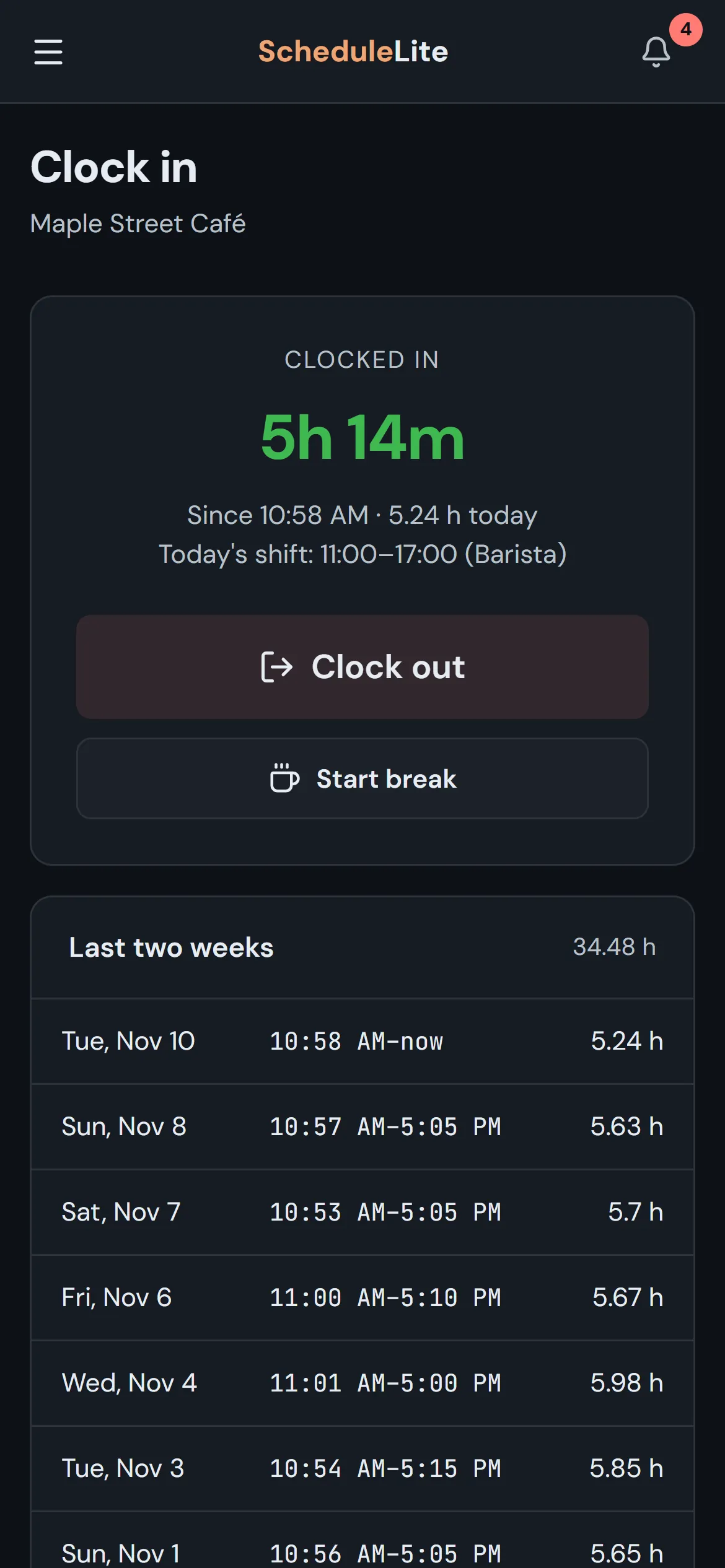
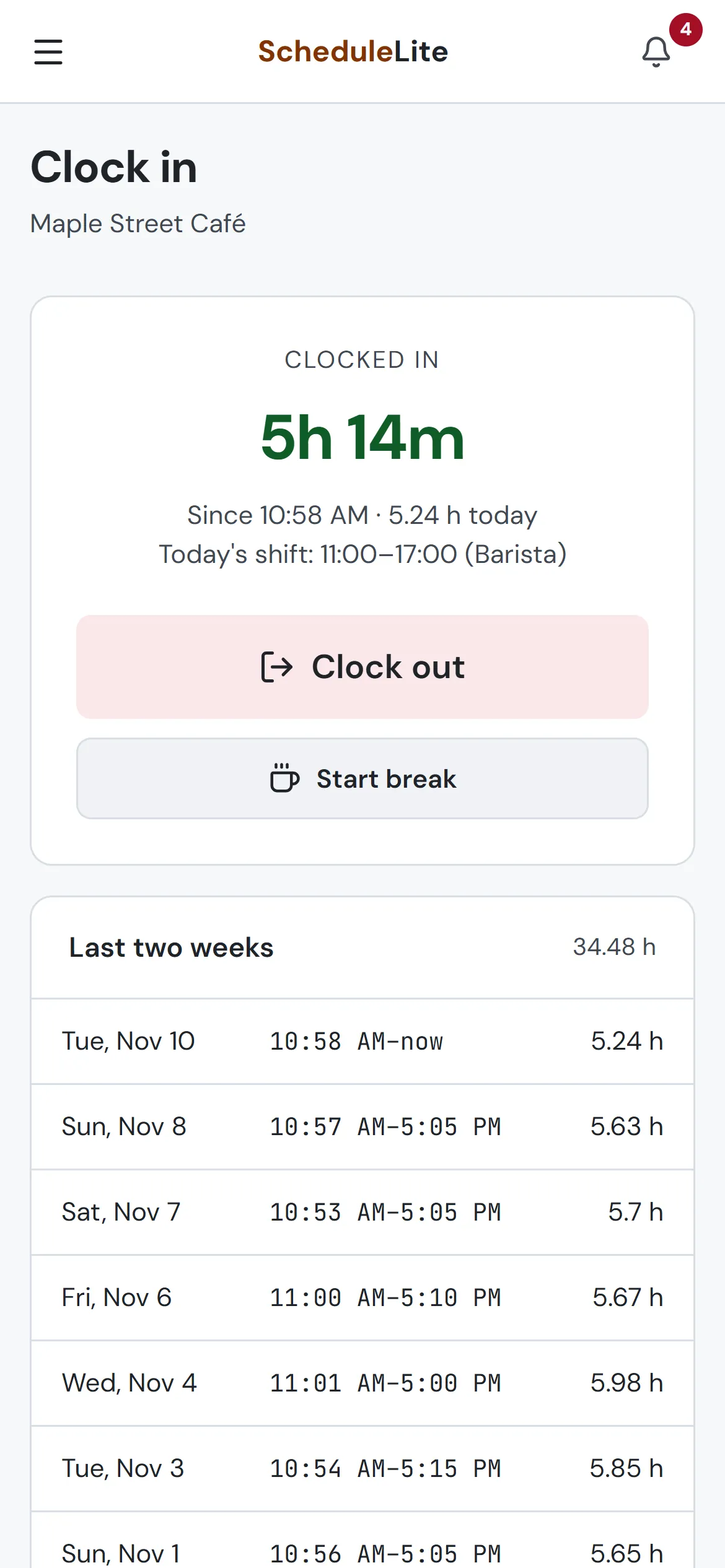
Tap Clock in when you start. Use Start break and End break for unpaid breaks, and Clock out when you leave. Your punches for the last two weeks are listed underneath.
- 3
If it asks for your location
Some stores check that you’re at the store when you clock in. Allow location when your phone asks. It’s only checked when you tap the button, never in the background.