
Use the timeclock and timesheets
Let your team clock in from their phones, then review and fix hours in Timesheets.
- 1
Your team clocks in
On Plus and up, everyone on the roster sees Clock in at the top of their menu. They tap Clock in when they start, Start break and End break for unpaid breaks, and Clock out when they leave.
- 2
See who’s on the clock
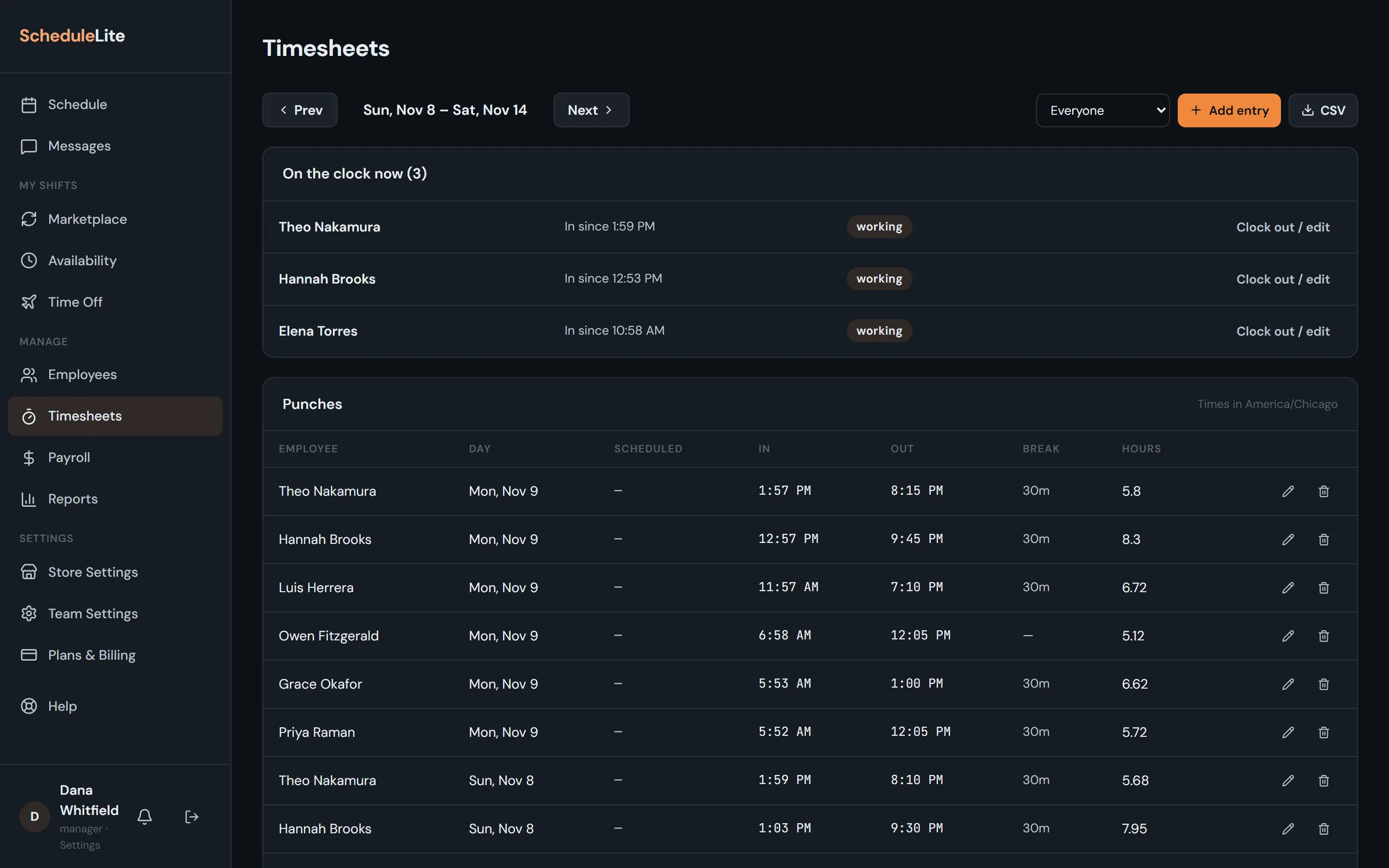
Open Timesheets. On the clock now lists everyone currently clocked in. Choose Clock out / edit if someone forgot to clock out.
- 3
Review the week
Punches lists every entry for the week with the scheduled shift beside it, breaks and hours, in your store’s timezone. Use Prev and Next to move between weeks, filter to one person, or download a CSV.
- 4
Fix a missed punch
Use the pencil to change an entry, or + Add entry to add one by hand. Nobody can edit their own hours: someone above them makes the change.
- 5
Check location and punch times (Pro)
In Store Settings, the Timeclock card sets your store’s location and a radius to check that people are at the store when they clock in, how early people may clock in, and when they count as late. Clocking out is never blocked.