
Manage time off and PTO
Approve time off requests, set up paid time off that builds up, and keep balances right.
- 1
Approve or deny requests
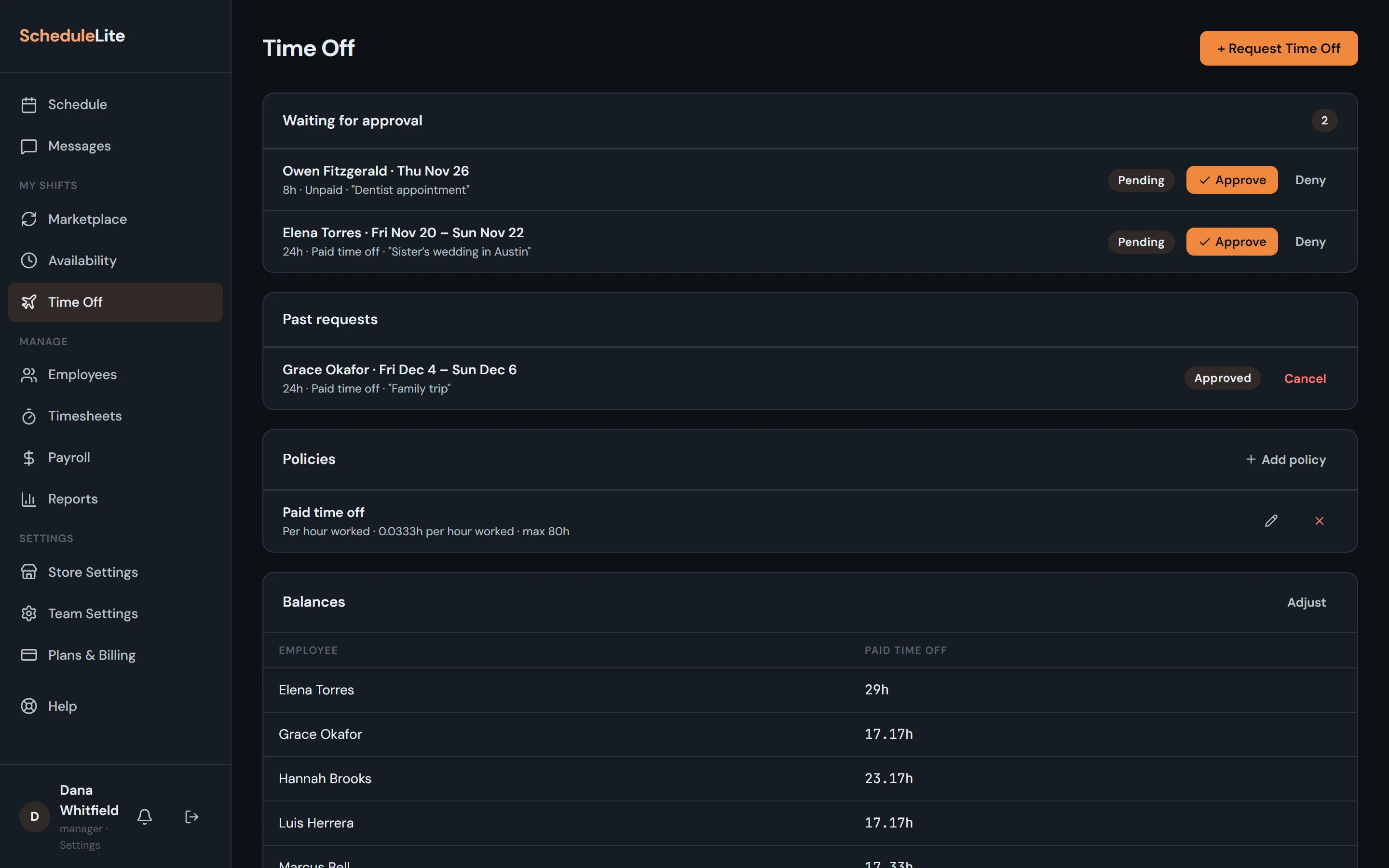
Open Time Off from the sidebar. New requests are under Waiting for approval with the dates, hours, type and the employee’s note. Choose Approve or Deny, and the employee gets a notification either way. If someone is already scheduled during the request, CrewCrow tells you before you approve.
- 2
Add time off for someone
Choose + Request Time Off and pick the employee to add time off on their behalf, for whole days or, with Part of a day, just a few hours.
- 3
Set up paid time off (Plus and up)
Under Policies, choose Add policy. Give it a name, choose whether it’s paid, and pick how it builds up: hours earned per hour worked, or hours granted each January. You can cap the balance, limit how much carries into a new year, and set how many days after hire it starts.
- 4
Check and adjust balances
Balances lists everyone’s hours for each policy. Use Adjust to add hours someone carried over from before, or a negative number to remove hours, with a note for the record.